
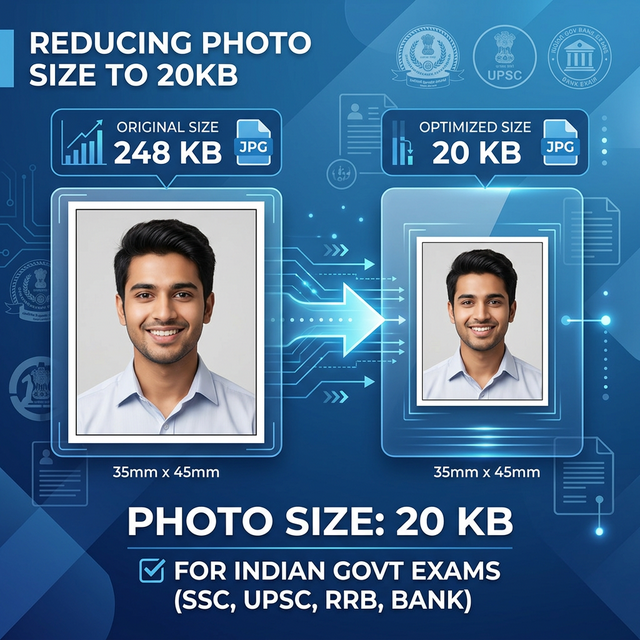
How to Reduce Photo Size to 20KB Online Quickly Without Affecting Image Quality
How to Reduce Photo Size to 20KB Online Quickly Without Affecting Image Quality
In today's digital world, the first impression in many applications comes from a passport-size photograph and signature uploaded to an online form. Whether you are applying for competitive exams, banking jobs, or school admissions, most application portals require a photo file size under 20KB.
Many applicants struggle with this requirement because reducing a photo size incorrectly can make the image blurry, pixelated, or distorted. Fortunately, there are several methods to reduce photo size to 20KB online while keeping the image clear and professional.
This guide explains why the 20KB limit exists, how to compress images properly, and which tools work best.
Why Government Applications Require a 20KB Photo
Government portals handling competitive exams receive millions of applications. Limiting photo size helps these systems work efficiently.
Server Efficiency Smaller image files require less storage space on databases.
Faster Uploading Candidates across India use different internet speeds. A small 20KB image uploads quickly even on slow connections.
Standardization Keeping image sizes similar helps exam authorities verify photos more easily.
The Challenge: Reducing Size Without Losing Quality
When you compress a photo, the software removes unnecessary data from the file. If compression is done aggressively, the image may lose detail and become blurry.
Common problems include:
- Blurry or pixelated faces
- Distorted colors
- Visible compression artifacts
- Loss of sharpness
The goal is to balance compression and clarity so the image remains identifiable.
Step-by-Step Guide to Reduce Photo Size to 20KB
Below are the most reliable methods used by students and job applicants.
Method 1: Using Online Image Compression Tools
Online tools are the fastest and easiest option. These platforms automatically optimize images while maintaining visual quality.
Recommended Tools
- TinyPNG – Compresses PNG and JPEG images efficiently
- CompressJPEG – Specifically designed for JPEG photos
- ILoveIMG – All-in-one image tool with target size support
Steps
- Upload your original photo (usually 50KB–200KB).
- Select the target file size option if available.
- Set the output size to 20KB.
- Click Compress.
- Download the optimized image.
- Check the file size using Right-click → Properties.
Method 2: Using MS Paint (Offline Method)
If you prefer not to upload your photo online, you can compress it offline using Microsoft Paint.
Steps
- Open the image in Paint.
- Click Resize.
- Select Pixels and keep Maintain Aspect Ratio enabled.
- Reduce the dimensions (for example 200 × 230 pixels).
- Save the image as JPEG.
JPEG files are smaller than PNG files, making them easier to compress below 20KB.
Method 3: Using Photoshop (Professional Control)
If you want precise control over compression, Photoshop is the best option.
Steps
- Open the photo in Photoshop.
- Click File → Export → Save for Web (Legacy).
- Choose JPEG format.
- Adjust the Quality slider (30–50%).
- Check the estimated file size in the preview.
- Adjust until the file reaches around 20KB.
- Save the image.
Pro Tips to Maintain Image Quality
Follow these professional tips to avoid quality loss.
Start With a High-Resolution Image
Always begin with a clear original photo. A high-resolution image compresses better than a blurry one.
Maintain Aspect Ratio
Never stretch images while resizing. Always keep the aspect ratio locked.
Use JPEG Format
JPEG files compress better than PNG for passport photos.
Adjust Dimensions First
Large photos like 800 × 1200 pixels are difficult to compress to 20KB. Resize them to around 200 × 230 pixels first.
Check Before Uploading
Zoom into the compressed photo to ensure facial features remain sharp.
Common Mistakes to Avoid
Many applications are rejected because of simple image errors.
Incorrect Background Most exam authorities require a white or light background.
Wrong File Format Images must usually be .JPG or .JPEG.
Incorrect File Name Follow the naming format mentioned in the application instructions.
Signature Compression Errors Signatures often need to be 10KB–20KB as well.
Best Online Tools to Reduce Photo Size to 20KB
Here are some reliable tools commonly used for exam applications:
- PicResize – Allows custom output file sizes
- ReduceNow – Designed for Indian exam photo formats
- Online-Convert – Advanced settings for compression
- Jpeg.io – Automatically optimizes JPEG images
Always use secure internet connections when uploading images online.
Frequently Asked Questions (FAQ)
Is it safe to reduce photo size online?
Most trusted platforms delete uploaded files after a few hours. However, if privacy is a concern, use offline tools like Paint or Photoshop.
What are the usual SSC or banking exam photo dimensions?
Most applications require:
- 200 × 230 pixels
- 20KB to 50KB
- White background
- Recent color photograph
Always check the official notification for exact requirements.
My photo is 50KB. How can I reduce it to 20KB?
Follow these steps:
- Crop extra background around your face.
- Reduce pixel dimensions slightly.
- Compress the image using a target size tool.
What if my image becomes 15KB?
If the file becomes too small:
- Re-upload the original photo.
- Increase the quality slider slightly.
- Adjust until the file size is between 18KB and 20KB.
Can signatures also be compressed to 20KB?
Yes. Signatures are usually black and white and compress easily. They often remain clear even at 10KB–15KB.
How can I check the exact size of my image?
On Windows – Right-click the file → Properties
On Mac – Select the file → Command + I
On Mobile – Open image details in the gallery app.
What is the difference between pixel size and KB size?
Pixel Size (Dimensions) refers to the width and height of the image (for example 200 × 230 pixels).
KB Size (File Size) refers to how much storage the image occupies.
To reach 20KB, you often need to reduce both dimensions and compression quality.
Can PNG photos be reduced to 20KB?
Yes, but PNG files are larger. It is recommended to convert PNG to JPG first and then compress it.
Conclusion
Understanding how to reduce photo size to 20KB without losing quality is an essential skill for anyone applying for exams, jobs, or school admissions.
By following the methods explained in this guide, you can easily prepare a photo that meets application requirements without sacrificing clarity.
Remember these key points:
- Start with a high-quality image
- Resize pixel dimensions first
- Use a trusted compression tool
- Always check the image before submitting
Preparing your documents early ensures a smooth application process and helps avoid last-minute technical issues.